As has been mentioned in other posts the entire Solar Industry is a bit like the Wild Wild West currently.
The after sales support is going to depend greatly on your installer.
Using the DESKTOP CLOUD APP accessed here (its not recommended to try changes in the mobile apps as they can be hit or miss): https://www.givenergy.cloud/login
I haven't seen any manual and as the applications are in constant flux I would guess it's kinda hard to keep these upto date. Personally I would rather they spend time fixing issues than creating a manual.
In an effort to assist you and others who come across this issue please read on:
When you first log into the Cloud App you will be presented with:
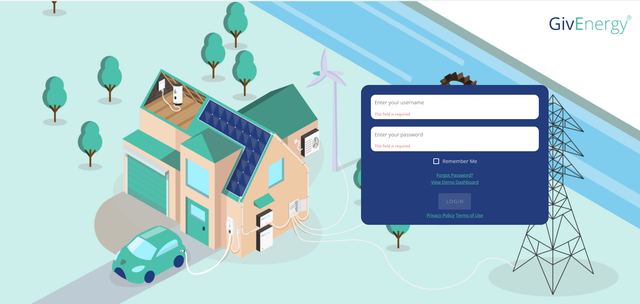
Enter your username (its common place for this to be "Firstname"."Surname") and whatever password you decided on.
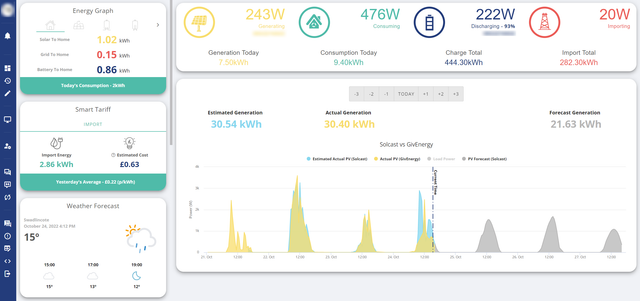
Upon entering the Cloud App you will something along these lines:
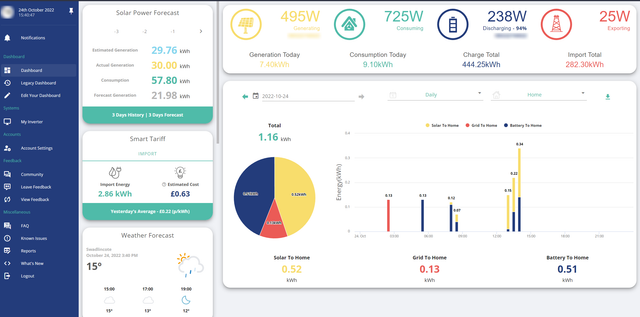
There is a Bar on the left which Auto Hides when your mouse pointer is not over it.
The main display screen has some "Cards" on the left hand side, an Overview of your current system performance on the top (this cannot be changed) and whatever you have set as your default Main Card below this.
If you click on "Edit Dashboard on the Left" you will see:
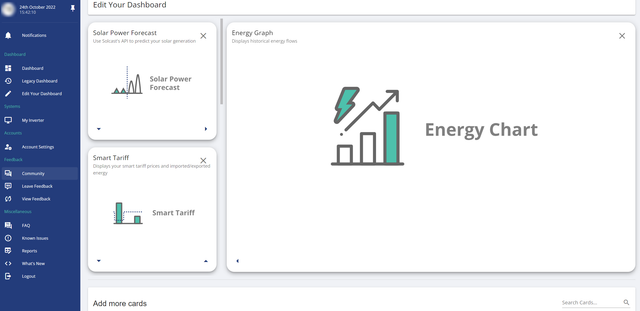
On the small "cards" you will see a DOWN Arrow in the Left Bottom Corner, an UP Arrow in the Right Bottom Corner or for the Card currently at the Top Position there will be a RIGHT Arrow in this corner.
Moving the Card Up or Down changes their default viewing position that is presented to you when you log in.
If you want to change the Large Card (in the example its Energy Graph) you would move the small card on the left into the top position and then use the RIGHT arrow (again in the example Solar Power Forecast is currently in the top position - pressing the RIGHT arrow would swap it's position with the Energy Graph Card.
You can register for the Solar Power Forecast here: https://solcast.com/ it will generate an API that you will need to copy and paste into the "card" where requested.
It's free for personal use (maximum 50 refreshes per day, but tbh there is no need to refresh this manually) and is pretty damn accurate, beating BBC weather forecasts on a regular basis........
Once you have customised the default layout that is presented to when you Login you will see something more like I have setup:
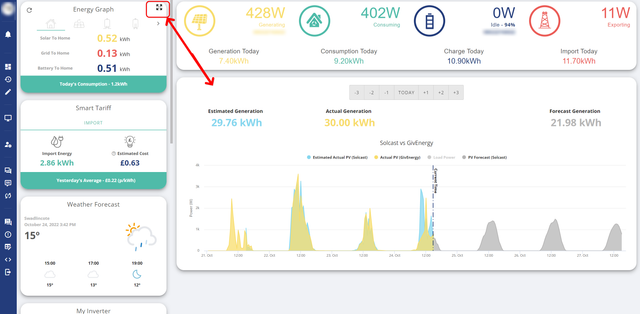
You will see that the Top Bar will cycle through Today and Totals every few seconds.
When you move your mouse cursor over the small left hand cards you will see that 2 new options appear, one in the Top Left the other in the Top Right.
Clicking the Top Left will refresh the data. Clicking the Top Right will temporarily move the card into the Main Position and swap the current main card into the left position.
On the left hand side under the heading of Systems is "My Inverter" (there is a Card too that works the same) if you click this (or expand the Card) you will see options across the Top of the Main View:
General - Software - Notifications - Settings - System Data - PV Data - Battery Data - Grid Data - Inverter Data - Meter Data.
Clicking on any of those headings will take you to the section where you can view the data or make changes.
Dealing with the Settings Page:
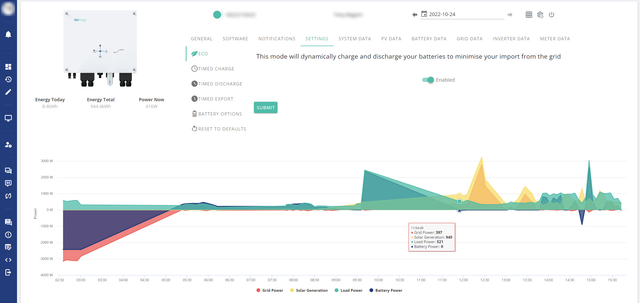
ECO MODE should be set to ENABLED
Realistically is not ECO mode (that implies economy mode) it's more of a system balanced mode. What it does is try and balance your system so that you are prioritising using:
- Solar to power your house
- Solar to charge your battery
- Solar to Export to grid
- Solar & Battery to power your house
Only drawing from Grid were you:
- Have no solar or
- Have no battery
- Exceed the capacity of what is being produced by Solar and available from Battery
You WILL still see some small grid draws due to switching delays (so maybe 100w) here or there.
Timed Charge
If you are on a Time of Use Tariff then you can set your inverter to start charging the batteries with defined Start and End times here.
Apparently Octopus can also communicate with your system to automatically do this so its upto you whether your want to trust this to your energy provider (other providers may not work).
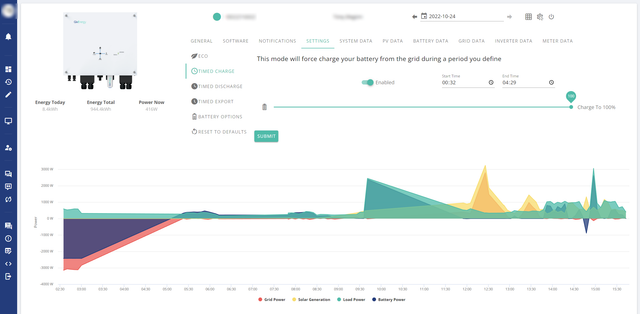
Making changes to either Timed Discharge or Timed Export OVER-RIDES the ECO Settings.
However you may have specific use cases for these. For example, charging an EV between certain hours.... But it would seem better to simply utilise your overnight Cheap Rate????
It's ideal/beneficial to leave the other options disabled by default.
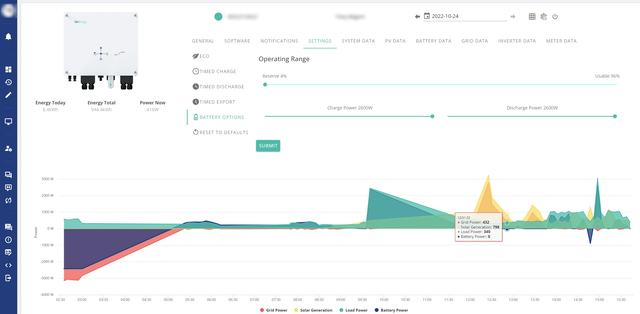
The final settings option here is Battery Options:
To maintain the battery life you are restricted from setting the reserve lower than 4% you can in effect increase the reserve but doing so reduces the available stored energy to be used by your household.
You can also alter your Charge Power and Discharge power (these numbers are inverter Generation and Size dependent). Again not sure why you need to but its upto you.
If you are not certain what this is all about and are worried you have messed things up then use the Reset To Defaults option.
The only things to check after doing this is to make certain that ECO MODE is Enabled and Timed Charge is Enabled (and the correct times are set reflecting your time of use tariff)
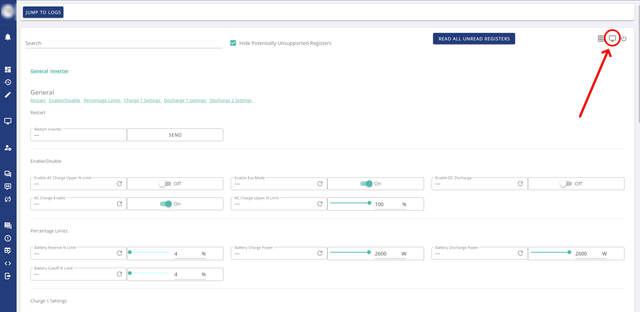
The final page shown here, called Remote Control, shows a sort of behind the scenes view of what you have been looking at.
If you are here you have likely pressed a wrong button and I would NOT recommend changing settings in here as its easy to mess things up and/or forget that you have changed something that doesn't have a corresponding setting under the My Inverter" options.
Hope that helps.