Intermittent here since Thursday 20/10 also.
Spoke to GE, essentially they said its my WiFi network and suggested I get a WiFi Extender.
Fortunately I have a spare router and have set it up as close as is possible to provide better coverage to the GE WiFi Dongle. The image showing signal strength below is literally me standing next to the inverter despite it saying I am 3.5-7.8 metres away 😆
So first thing to do is unscrew the WiFi dongle (2 screws) being careful not to drop them!
Unplug it, wait a few minutes then reinsert it.
Initially you will see flashing blue lights but it should go steady blue light when its got a stable connection.
Once that is done if you still encounter problems it's time to get a little more technical:
You can maybe do this only with WiFi as long as you have some kind of bars/slices/whatever to give an idea of signal strength.
However, if you have an Android Phone you download a free app called "WiFi Analyzer". This allows you to measure the signal strength
Sorry I don't know how to do this on iPhone (and seem to recall reading that Apple removed all these types of Apps from the Appstore....!)
Go to next to where your inverter is installed, start the app and check what the signal strength of your HOME WiFi is like. Essentially Green is Good (something around -60dBm or lower). Here the LOWER the number is the better.
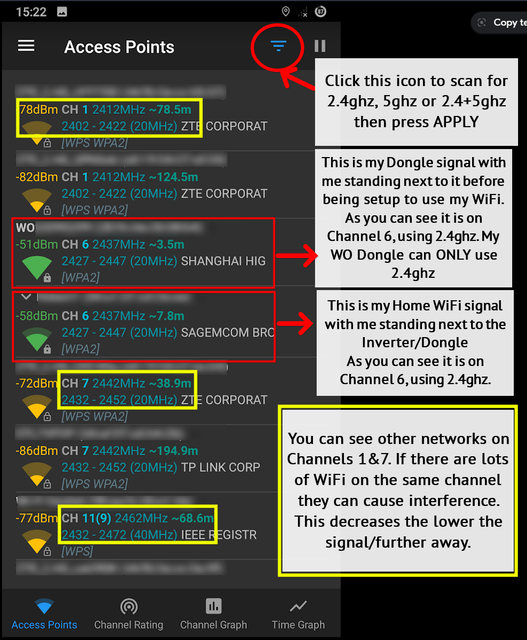
The 2.4ghz frequency is better at transmitting through walls and such than 5ghz. However there are only 13 Channels and you want to be ideally on 1, 6 or 11. So if someone next door is also on 6 your better switching your Router to 1 or 11. Channels 2-5, 7-10 and 12-13 provide little to no benefit. So find the Channel 1/6/11 that has the lowest signal close to you and you should be ok.
If you have 5ghz then there are many more channels available but they will suffer from degraded signal strength if your Inverter is further away from your home router (ie more walls and things to try and pass through).
My Dongle serial "WOXXXXXXXX" is 2.4ghz only along with WE and WF. WZ is apparently dual band 2.4ghz+5ghz.
If you need any help with moving your WiFi Channel on your router then its best to speak to your ISP Provider for assistance as each router will have different options to get to it.
I hope that helps.