Identifying my Inverter IP and getting GivTCP to work?

52 comments started 2022-12-07 last 2023-01-14
Home Automation
G
#1 GREENSLADE_GL52_6LH

I've just started to install GivTCP using a guide I found on the internet, using Docker, but I'm having problems. It doesn't auto discover my Invertor IP address and therefore I've used 'Advanced IP Scanner' to try to identify it. Apparently the Dongles MAC address should start with 34:ea:e7 but I haven't seen that in the list of devices it's found on my network. The scanner has found a device with a MAC address starting with e8:fd:f8 and with a manufacturers name of "Shanghai High-Flying Electronics Technology Co., Ltd". Is this the Dongle? Assuming it is the Dongle, I've tried entering the IP address in the following line, but it still doesn't work. Any ideas?

docker run --name GivTCP -d -p 6345:6345 -e INVERTOR_IP=192.168.68.108 britkat/giv_tcp-ma

T
#2 Tim

GREENSLADE_GL52_6LH the IP address looks unusual so I would double check the 68 between the 2nd and 3rd dots. Is that the same format as your router?

The inverter up address can be set in you container settings (ENV if you are using Portainer).

A bit more detail on the platform you are running docker on (OS) and how/if you manage containers through a web interface or just the command line would help too.

#3 TheDragon (GivEnergy)

If you try and web browse to http://192.168.68.108. do you get a login prompt?

If so the IP is correct. SHanghai High Flying is correct. HF21 is my hostname for my dongle

S
#4 simondoyle

Yes, your inverter should start with "HF" - and fwiw, mine has a MAC address beginning e8:fd:f8

G
#5 GREENSLADE_GL52_6LH

simondoyle I do get a login prompt and the MAC address begins with e8:fd:f8. my IP scanner does not seem to resolve the host name, only shows the 'name' as the same as the IP address.

So it looks like I've found the Dongle, but that doesn't explain why running the giv_tcp-ma container isn't working. The docker log says
"sync - [ERROR] - Connection to (, 8899) failed: [Errno -2] Name does not resolve"

any ideas would be appreciated?

T
#6 Tim

GREENSLADE_GL52_6LH You can set a host name by defining it in your DHCP server interface (probably your home broadband router).

GREENSLADE_GL52_6LH Connection to (, 8899)

Not sure but this looks to be missing the host name in the log. Have you set the ENV variable INVERTOR_IP_1 in the container to the IP address you were able to get the login prompt at?

If you set the host name in your DHCP server, you can use the same name in the ENV variable and never have to worry about the IP address again. Even if you don't, set the IP address as static in the DHCP server.

G
#7 GREENSLADE_GL52_6LH

Sorry, this is all very new to me. How do I set the ENV variable?

G
#8 GREENSLADE_GL52_6LH

On the Command prompt I entered "docker run --name GivTCP -d -p 6345:6345 -e INVERTOR_IP_1=192.168.68.108 britkat/giv_tcp-ma" and I think it's working.

I also entered the URL 127.0.0.1:6345/runAll and it brought up a page of unformatted Invertor related info.

T
#9 Tim

GREENSLADE_GL52_6LH We haven't shared Givtcp docker environments and I think that might be a stumbling block. My Docker runs on a Raspberry Pi and I use Portainer to provide a web interface so configuration etc is easier (for me). If yours is now running Ok from the command line, then you're good to go (until it falls over).

G
#10 GREENSLADE_GL52_6LH

Thanks for your help on this. Next thing I need to do is to sort out a connection to MQTT ...

T
#12 Tim

GREENSLADE_GL52_6LH Using Docker and Portainer enables all the configuration to be put into ENV settings. No idea how you would run from the command line with a broker name.

#13 Riscy

GREENSLADE_GL52_6LH Maybe you've already ruled this out, but if you don't want to get so involved in setting up Docker then I can definitely recommend using the GivTCP Add-On in Home Assistant instead.

HA is really easy to set up using a pre-built image, e.g. for Raspberry Pi. It has Add-Ons for both GivTCP and an MQTT broker, both of which are a one-click job to install. Then you can just configure GivTCP to push data to the local MQTT instance, and pick it up from anywhere else.

The GivTCP Add-On in HA even supports REST commands, so you can do the local control thing too.

C
#14 cluelesscris

Riscy I second this. HA Add-on is a lot less hassle and requires a much lower learning curve.

#15 judgepd

cluelesscris I third this. The home assistant add-on has worked perfectly for me.

#16 Woodlands

Where abouts is the Add-on for GivTCP in HA?
I have looked in Devices & Services and also Configuration but GivTCP is not listed.

#18 Woodlands

@Zakalwe Had a look at that video but my version of Home Assistant does not have the Settings & Add-ons menu items.
How do you get at those?

C
#19 cluelesscris

Woodlands Go to Settings | People and set your account adminstrator toggle to on.

Z
#20 Zakalwe

I'm the last person on the planet to ask for HA help! :-)

Make sure that your account is set as an Administrator. Also enable "Advanced" in your user profile (click on your name on the left).

#21 Woodlands

@cluelesscris Just doubled checked and I am already listed as an Administrator. Still no option for settings & add-ons.
Also, have "Advanced Mode" switched on.

C
#22 cluelesscris

Zakalwe Yep. Forgot that bit.... Sorry.

#23 Riscy

Woodlands What build of HA are you using?

E.g. mine is the Home Assistant OS build (used to be called Hassio I think) where the whole image is written to an RPi. Other builds are Docker containers that you install into an existing OS. I've noticed that some of the settings are in different places sometimes.

Maybe someone can send a screenshot if they've got the same build as you.

#24 Woodlands

Ours is installed in a Docker Container. From doing an internet search, it appears that the "Add-On options are not available in some versions, including if installed in a container.
" Home Assistant offers four different installation methods. We recommend using one of the following two methods:

Home Assistant Operating System: Minimal Operating System optimized to power Home Assistant. It comes with Supervisor to manage Home Assistant Core and Add-ons. Recommended installation method.
Home Assistant Container: Standalone container-based installation of Home Assistant Core (e.g. Docker)."

I might try starting again and just load HA as a new image direct on the RPi4, without using Docker.

S
#25 simondoyle

Going by this Help article on Add-ons, I don't think Add-ons are an option for the Docker route.

Add-ons are only available if you've used the Home Assistant Operating System or Home Assistant Supervised installation method. If you installed Home Assistant using any other method then you cannot use add-ons. Often you can achieve the same manually, refer to the documentation by the vendor of the application you'd like to install.
https://www.home-assistant.io/addons/

Personally, I'm using Docker Home Assistant on a Synology NAS - I've installed GivTCP in a Docker instance and then I've used the MQTT Integration to see the GivTCP feed as Sensor data.
More or less the process outlined here, except I'm on an NAS and not on a PI: https://alanedwardes.com/blog/posts/live-givenergy-pv-inverter-data-in-home-assistant/

T
#26 Tim

Zakalwe Thanks for that. I didn't even know it could be installed as an Add On on HA! You learn something new every day. 😃

G
#27 GREENSLADE_GL52_6LH

Using my PC and Windows I’ve now successfully got the Node-Red dashboard working, with Giv_TCP containerised with Docker (also using Portainer) and the Mosquitto MQTT broker. Although all of this was new to me, thanks to the information and advice posted on various forums, including this one, I encountered very few issues along the way.
My actual goal is to get all this running on a single board computer, but I thought initially getting it configured and working on my PC would make for a good learning environment. I’ve now bought a BeagleBone Black running Debian.
Using the command line only, I’ve performed the following:
I’ve successfully loaded up Docker
Created the GivTCP container using ā€œsudo docker run --privileged --name GivTCP -d -p 6345:6345 -e INVERTOR_IP_1=invertor-ip -e MQTT_ADDRESS=BeagleBone-ip britkat/giv_tcp-maā€. Note, I had to use the ā€œ--privilegedā€ as I was getting ā€˜docker permission denied’ errors. Once I could see the Giv_TCP container was running, I did a runAll from the browser which returned the page full of unformatted invertor data. All good so far …
The BeagleBone Black comes with Node-red pre-installed and therefore I simply imported the ā€˜flow’ json file I was using on my PC onto the Node-red on my BeagleBone. Pointing the browser at the dashboard, it seems to be working apart from it doesn’t show or update the invertor data.
I therefore wondered if the problem with the MQTT broker. Looking in the mosquitto.log it reads multiples of the following:
1672506259: New connection from 172.17.0.2 on port 1883.
1672506260: Socket error on client <unknown>, disconnecting.
1672506260: New connection from 172.17.0.2 on port 1883.
1672506260: New client connected from 172.17.0.2 as GivEnergy_GivTCP_1 (c1, k60).
1672506260: Client GivEnergy_GivTCP_1 disconnected.
Any advice where I am going wrong would be very much appreciated.

G
#29 GREENSLADE_GL52_6LH

anglefire Hi and thanks for the quick reply. I used your excellent instructions when I configured my PC and I added your compose file by copy and pasting it into the stack on Portainer. However, on my BeagleBone Black I need to use the command line interface and therefore I cut and pasted it into a .yml file and used the docker stack deploy command. It errored, saying I was not in a swarm. I therefore assumed that it would work if I just included the invertor and MQTT broker IP addresses in the docker run command. I didn't realise it needed more environmental variables set.
Could you please advise on a command for doing this? thanks

A
#30 anglefire

GREENSLADE_GL52_6LH I don't use the command line, but think this should work - you will need to amend some of the IP's addresses MQTT user name and password.

sudo docker run --privileged --name GivTCP -d -p 6345:6345 -e INVERTOR_IP=192.168.68.108 -e SELF_RUN=True -e SELF_RUN_LOOP_TIMER=10 -e HA_AUTO_D=True -e HADEVICEPREFIX=GivTCP -e MQTT_ADDRESS=BeagleBone-ip -e NUMINVERTORS=1 -e NUMBATTERIES_1=1 -e MQTT_OUTPUT=True -e MQTT_USERNAME=mqtt-user -e MQTT_PASSWORD=password -e HOSTIP=192.168.1.107 -e CACHELOCATION=/config/GivTCP -e TZ=Europe/London britkat/giv_tcp-ma

T
#31 tsouthwell

GREENSLADE_GL52_6LH I’ve found the IP address in the App then changed my router to allocate it a fixed IP address for the future - problem solved.

G
#32 GREENSLADE_GL52_6LH

anglefire Thanks for the amended command. I've tried it out (with MQTT_USERNAME and MQTT_PASSWORD removed , as I've left these as default. Before running the command I removed the image and previously made container, but it erred with:

Unable to find image 'britkat/giv_tcp-ma:latest' locally
latest: Pulling from britkat/giv_tcp-ma
a14774a5a62e: Already exists
f28fc9ef3efb: Already exists
d6b9ef1d5b83: Already exists
4c386018d306: Already exists
6991025d3a35: Already exists
927022849153: Already exists
522cb41869f4: Already exists
cd529b4664a1: Already exists
f90df330560b: Already exists
d93fdc6202ee: Already exists
fca4254ade79: Already exists
b47ab722581e: Already exists
c365fd9b8bb2: Already exists
b76d49fa0d81: Already exists
f086ed0e5018: Already exists
b21d15273c6f: Already exists
eb1451690c2d: Already exists
725f9446d23a: Already exists
06ead042c293: Already exists
1cdae405efe4: Already exists
a49d362fef20: Already exists
Digest: sha256:467255f9a68c2eca17a29ae32a4b0de0c50efcab75cd05450f7b40805265bcbd
Status: Downloaded newer image for britkat/giv_tcp-ma:latest
docker: Error response from daemon: Conflict. The container name "/GivTCP" is already in use by container "9275639358fc192e175b3b43aa5700cbcaf7591a87b7bd620517a60ed86e18f7". You have to remove (or rename) that container to be able to reuse that name.

So I'm now confused?

G
#33 GREENSLADE_GL52_6LH

tsouthwell Yes, I did the same

G
#34 GREENSLADE_GL52_6LH

GREENSLADE_GL52_6LH

I needed to use the docker container ls -all command verse docker container ls to see the container

I'll message when I've made some more progress ...

A
#35 anglefire

You need to delete the current container.

docker system prune

Should work. May need to sudo it too.

G
#36 GREENSLADE_GL52_6LH

anglefire Still struggling to get this to go. Here's my modified command:

docker run --privileged --name GivTCP -d -p 6345:6345 -e INVERTOR_IP_1=192.168.68.107 -e SELF_RUN=True -e SELF_RUN_LOOP_TIMER=10 -e HA_AUTO_D=True -e HADEVICEPREFIX=GivTCP -e MQTT_ADDRESS=192.168.68.101 -e NUMINVERTORS=1 -e NUMBATTERIES_1=1 -e MQTT_OUTPUT=True -e HOSTIP=192.168.68.101 -e CACHELOCATION=/config/GivTCP -e TZ=Europe/London britkat/giv_tcp-ma

Note I've changed INVERTOR_IP to INVERTOR_IP_1 and there is no entry for the MQTT username and password (because I didn't set this up on Mosquitto). I've also set the MQTT_ADDRESS to my beagleBone address and not 127.0.0.1.

runAll still works, but not the data update on the dashboard.

Any ideas?

A
#37 anglefire

GREENSLADE_GL52_6LH Do you have MQTT explorer?
If not, its worth downloading a copy and then point it at your MQTT broker - if you see tags with data appearing under the GivEnergy tag, its working and GivTCP is self publishing.
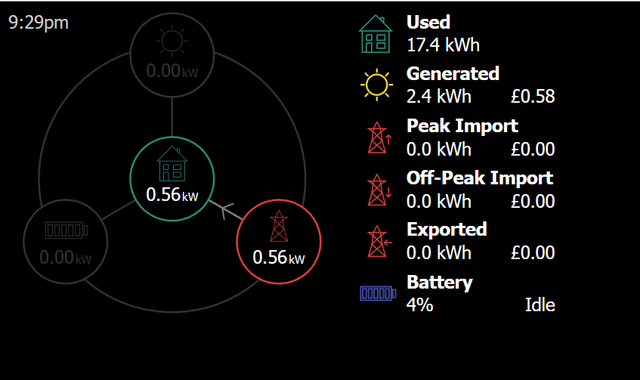
When you say dashboard, do you mean this one:

If so, you need to add ports 3000 to the string - in the same way as the 6345 port is added.

G
#38 GREENSLADE_GL52_6LH

anglefire I do have a MQTT explorer, but as its on my PC I didn't think about using for looking at the MQTT broker on the BeagleBone. I've now set it up and its seeing data appearing under the GivEnergy tab.

The dashboard is the Node-red dashboard

A
#39 anglefire

Ah ok. So givtcp is working. That’s good.

As for the node red dashboard - I don’t use one so can’t really help. Have you setup node red with a one?

In node red I use the readData call rather than runAll - it reads from the givtcp cache as that is self running. If you don’t self run givtcp then you have to use runAll. But either will work when self running.

G
#41 GREENSLADE_GL52_6LH

anglefire Out of interest, where do I get the dashboard you mentioned above?

A
#42 anglefire

Basically the ip address of givtcp and then the port 3000.

So for example http://192.168.1.107:3000

You may need to add port 3000 to the command line when you start it up.

G
#43 GREENSLADE_GL52_6LH

anglefire I got the node-red flow from a link on this forum (home automation - node-red), where I copy and pasted a json file (named Givenergy APIv1) containing the flow. To be honest I'm not sure if its using MQTT as the scope of the data seems to be very limited compared with runAll.

G
#44 GREENSLADE_GL52_6LH

anglefire I see it mentions "https://api.givenergy.cloud/v1" in some of the underlying code, so maybe it doesn't get the data directly from the Invertor but from the cloud instead?

A
#45 anglefire

GREENSLADE_GL52_6LH there is some code on the teravolt site with some node red code that I posted - it’s not my original code but from someone else that I modified. That uses the call to the inverter and not the cloud. Not all of it necessarily works si don’t use the time stuff so have never tested it.

G
#46 GREENSLADE_GL52_6LH

anglefire Thanks, I'll have a look

A
#47 anglefire

Again there is no dashboard on it - as I use home assistant for visualisation.
Which if you do use HA then the node red stuff is not that important as Mqtt will give everything - pretty much that node red can do.

G
#48 GREENSLADE_GL52_6LH

anglefire I seem to be making some progress on Node-red. I've created a 'mqtt in' node, with topic set to GivEnergy/SDxxxxxxx/Power/Power/PV_Power_String_1 and connected to a debugger node. In the debug window it periodically returns the power generated.

I'm now wondering whether I should go down the HA route?

A
#49 anglefire

GREENSLADE_GL52_6LH HA is a good route - but is a time waster! You can spend a load of time getting it to work - and then even more meddling šŸ˜€ - I do like it though!

I have a number of smart devices and a few automations to do things.
It can be setup on fairly simple hardware - Raspberry Pi is probably the simplest - if you can get one - or something like a NUC or even some NAS drives. I run mine on a NUC now as it is powerful enough to run more than one thing (4 on mine at the moment) - NUC's are available of ebay for not a lot of money.

G
#50 GREENSLADE_GL52_6LH

anglefire I'll need to use my beagleBone Black and that means upgrading python and then installing HA. What could possibly go wrong?

G
#52 GREENSLADE_GL52_6LH

anglefire Many thanks, I'll give it a try

T
#53 TX200

Using the Docker approach ( https://terravolt.co.uk/Downloads/Misc/Powershell/Givenergy%20GIVTCP%20Local%20Data.pdf ) , not 100% sure it's working - I can read all the data, but the docker output seems to be connecting and disconnecting.

2023-01-14 17:12:39 2023-01-14 17:12:39,735 - startup - [CRITICAL] - Subscribing Mosquitto on port 1883
2023-01-14 17:12:39 2023-01-14 17:12:39,736 - startup - [CRITICAL] - Starting Gunicorn on port 6345
2023-01-14 17:12:39 2023-01-14 17:12:39,737 - startup - [CRITICAL] - Starting Mosquitto on port 1883
2023-01-14 17:12:39 2023-01-14 17:12:39,740 - startup - [CRITICAL] - Setting daily charge target forecast job to run at: 00:20
2023-01-14 17:12:39 1673716359: mosquitto version 2.0.11 starting
2023-01-14 17:12:39 1673716359: Config loaded from /app/GivTCP_1/mqtt.conf.
2023-01-14 17:12:39 1673716359: Opening ipv4 listen socket on port 1883.
2023-01-14 17:12:39 1673716359: mosquitto version 2.0.11 running
2023-01-14 17:12:39 [2023-01-14 17:12:39 +0000] [15] [INFO] Starting gunicorn 20.1.0
2023-01-14 17:12:39 [2023-01-14 17:12:39 +0000] [15] [INFO] Listening at: http://0.0.0.0:6345 (15)
2023-01-14 17:12:39 [2023-01-14 17:12:39 +0000] [15] [INFO] Using worker: sync
2023-01-14 17:12:39 [2023-01-14 17:12:39 +0000] [20] [INFO] Booting worker with pid: 20
2023-01-14 17:12:40 [2023-01-14 17:12:40 +0000] [21] [INFO] Booting worker with pid: 21
2023-01-14 17:12:40 [2023-01-14 17:12:40 +0000] [23] [INFO] Booting worker with pid: 23
2023-01-14 17:12:40 RQ Dashboard version 0.6.0
2023-01-14 17:12:40 * Running on 0.0.0.0:9181
2023-01-14 17:12:40 * Serving Flask app 'rq_dashboard.cli'
2023-01-14 17:12:40 * Debug mode: off
2023-01-14 17:12:43 2023-01-14 17:12:43,785 - GivLUT - [CRITICAL] - Consecutive failure count= 6
2023-01-14 17:12:43 2023-01-14 17:12:43,786 - read - [ERROR] - Error collecting registers: (<class 'KeyError'>, KeyError(HR:013), <traceback object at 0x7f2d38f53440>)
2023-01-14 17:12:48 2023-01-14 17:12:48,611 - read - [CRITICAL] - First time running so saving AC Charge status
2023-01-14 17:12:48 2023-01-14 17:12:48,619 - read - [CRITICAL] - Publishing Home Assistant Discovery messages
2023-01-14 17:12:48 1673716368: New connection from 127.0.0.1:54529 on port 1883.
2023-01-14 17:12:49 1673716369: Client <unknown> closed its connection.
2023-01-14 17:12:49 1673716369: New connection from 127.0.0.1:36757 on port 1883.
2023-01-14 17:12:49 1673716369: New client connected from 127.0.0.1:36757 as GivEnergy_GivTCP_1 (p2, c1, k60).
2023-01-14 17:12:49 1673716369: Client GivEnergy_GivTCP_1 disconnected.
2023-01-14 17:12:49 1673716369: New connection from 127.0.0.1:34399 on port 1883.
2023-01-14 17:12:50 1673716370: New connection from 127.0.0.1:55607 on port 1883.
2023-01-14 17:12:50 1673716370: New client connected from 127.0.0.1:55607 as GivEnergy_GivTCP_1_Control (p2, c1, k60).
2023-01-14 17:12:50 1673716370: Client <unknown> closed its connection.
2023-01-14 17:12:50 1673716370: New connection from 127.0.0.1:42793 on port 1883.
2023-01-14 17:12:50 1673716370: New client connected from 127.0.0.1:42793 as GivEnergy_GivTCP_1 (p2, c1, k60).
2023-01-14 17:12:51 1673716371: Client GivEnergy_GivTCP_1 disconnected.
2023-01-14 17:12:55 2023-01-14 17:12:55,612 - GivLUT - [CRITICAL] - Consecutive failure count= 1
2023-01-14 17:12:55 2023-01-14 17:12:55,614 - read - [ERROR] - Error collecting registers: (<class 'KeyError'>, KeyError(HR:013), <traceback object at 0x7f2d38f53500>)
2023-01-14 17:12:56 1673716376: New connection from 127.0.0.1:52005 on port 1883.
2023-01-14 17:12:57 1673716377: Client <unknown> closed its connection.
2023-01-14 17:12:57 1673716377: New connection from 127.0.0.1:54003 on port 1883.
2023-01-14 17:12:57 1673716377: New client connected from 127.0.0.1:54003 as GivEnergy_GivTCP_1 (p2, c1, k60).
2023-01-14 17:12:57 1673716377: Client GivEnergy_GivTCP_1 disconnected.
2023-01-14 17:13:06 2023-01-14 17:13:06,000 - GivLUT - [CRITICAL] - Consecutive failure count= 2
2023-01-14 17:13:06 2023-01-14 17:13:06,001 - read - [ERROR] - Error collecting registers: (<class 'KeyError'>, KeyError(HR:013), <traceback object at 0x7f2d38f53500>)
2023-01-14 17:13:06 1673716386: New connection from 127.0.0.1:49335 on port 1883.
2023-01-14 17:13:07 1673716387: Client <unknown> closed its connection.
2023-01-14 17:13:07 1673716387: New connection from 127.0.0.1:41297 on port 1883.
2023-01-14 17:13:07 1673716387: New client connected from 127.0.0.1:41297 as GivEnergy_GivTCP_1 (p2, c1, k60).
2023-01-14 17:13:07 1673716387: Client GivEnergy_GivTCP_1 disconnected.
2023-01-14 17:13:16 2023-01-14 17:13:16,520 - GivLUT - [CRITICAL] - Consecutive failure count= 3
2023-01-14 17:13:16 2023-01-14 17:13:16,520 - read - [ERROR] - Error collecting registers: (<class 'KeyError'>, KeyError(HR:113), <traceback object at 0x7f2d38f52bc0>)