AIO web portal remote control question.

7 comments started 2024-06-07 last 2024-06-07
Cloud PortalGivEnergy Products
M
#1 MickWheater

Is there a manual that describes the various settings in the remote control page of the web portal? I have the AIO installation manual but this doesn't explain all the settings.
For example what do the following settings actually do?

  • Inverter Discharge Power Percentage
  • Inverter Max Output Active Power Percent
  • Battery Discharge Power

When I adjust the battery discharge power I can see the discharge power changes on the app and on the inverter quick settings page on the web portal, so that makes sense, you can limit the max power the battery will discharge at. When I change the other two option I don't understand what I am changing, can anyone shed any light?


#2 hoggy

MickWheater
On the AIO, options A & C are essentially the same thing but just different ways of interacting via values (one is a % of max Watts scaled 0-100%/0-6000W and the other is simply Watts directly)
Option B on an AIO equally will do the same as A&B but as its total inverter it will limit both charge and discharge.
This one is more of a carryover from the Hybrid inverters where it is more useful - on those the PV and AC can be modulated down to limit inverter output independently of any other battery charge rates set.
(I specifically use it to soft shutdown my Hybrid inverter to avoid stressful arcs across the isolator when switching my PV strings off) setting it to 0% essentially puts the inverter into idle for both battery and PV.

M
#3 MickWheater

hoggy On the AIO, options A & C are essentially the same thing but just different ways of interacting via values (one is a % of max Watts scaled 0-100%/0-6000W and the other is simply Watts directly)

I did suspect this but when I adjust the 'discharge power percentage', the battery options on the app doesn't change, it still displays 6000W. How would the portal decide which setting to use as they can be set to conflict, and changing one doesn't change the other.

#4 hoggy

MickWheater I honestly can't remember which one overrules the other (or even if it's just a "whichever lower")
The app will only change one not both, and as you've said % is what the app changes I'd lean towards % overrules. Easy test though by just playing with them.

I think it came about because if you have just power (W) you then you have to know which inverter it is to know what the scale is from 0 to ?W and what battery it has. Now there are more 3rd parties interfacing I imagine it's far easier to just average all the various connotations of power output possible over the entire fleet of inverters under control - and just say I want 50% right now (not having to go and work out all the different power ratings for each one)

#5 Tenkaykev

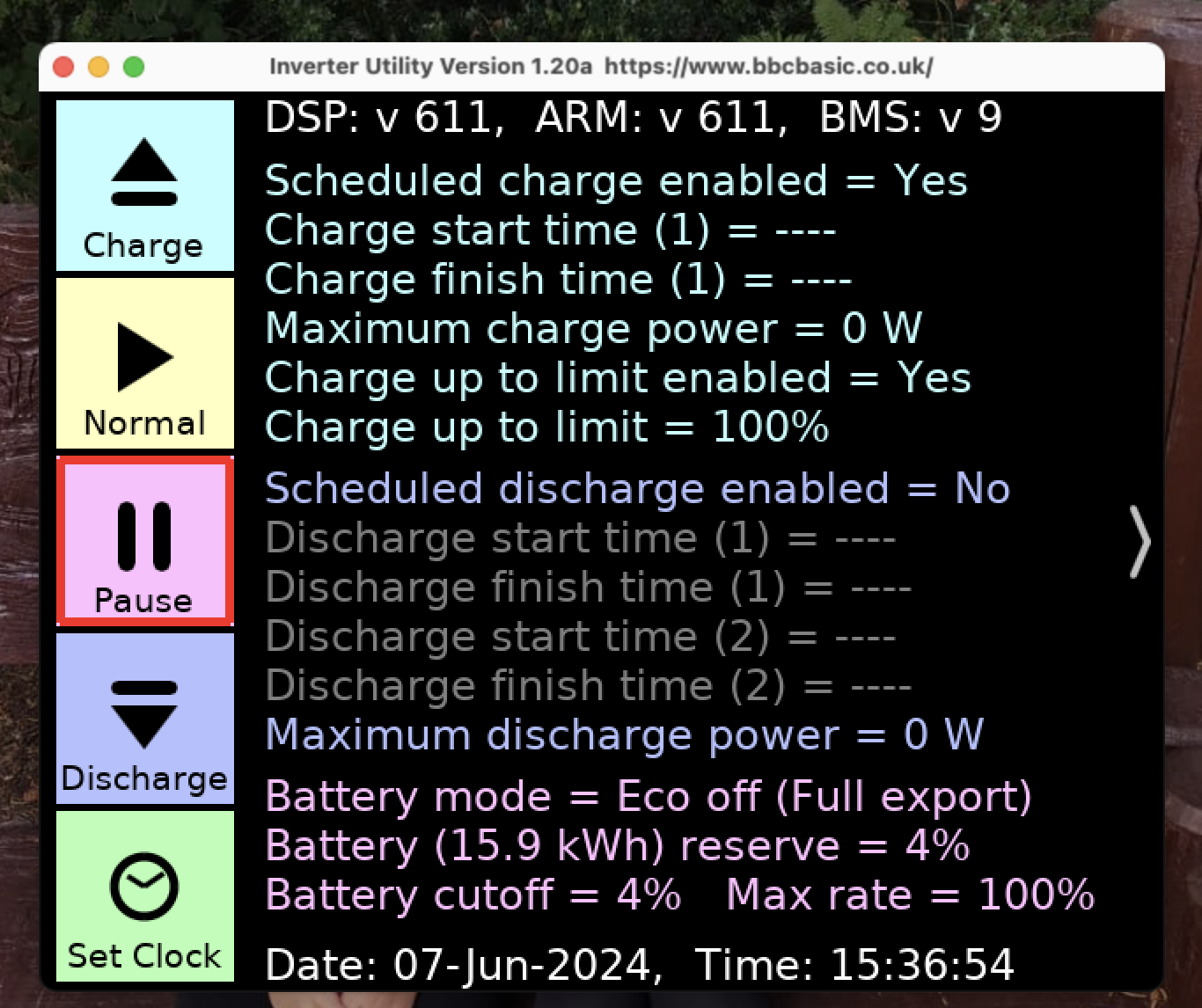
I use the free bbcbasic " Inverter " App to monitor my AIO and have it permanently displaying the animated ( almost ) real time Solar / Battery / Grid / Home display. I dumped the battery down to 30% earlier in preparation for the cheap Agile slots this afternoon. When the slots finished at 15:30 my battery was about 90% and the panels started to charge the battery. I hadn't realised that the controls shown on the first screen on the Inverter app are interactive. I pressed the " Pause " battery icon and a few seconds later the solar output started exporting to the grid.

M
#6 MickWheater

Tenkaykev is this on IOS, Android or PC/Mac?

#7 PianSom

MickWheater
Yes 🙂

BBC Basic App:
iOS: https://apps.apple.com/gb/app/inverter/id6443976497
Android: https://bbcbasic.co.uk/inverter.apk
Windows: https://bbcbasic.co.uk/inverter.exe
MacOS: https://bbcbasic.co.uk/inverter.dmg
Linux: https://bbcbasic.co.uk/inverter.zip
Raspberry Pi (32-bit): https://bbcbasic.co.uk/inverter-rpi.zip
Raspberry Pi (64-bit): https://bbcbasic.co.uk/inverter-rpi64.zip
Source code: https://www.bbcbasic.co.uk/inverter_source.html

(Links courtesy of hoggy's original posting)