It comes up a few times "how do I automate my inverter to do X outside of the GivEnergy Portal/App"
So to help others out, I am sharing how I do X in Home Assistant. There are of course other ways to achieve inverter automation, cloud services like WonderWatt, full battery management systems like Predbat, using the GivLocal HA integration or calling the inverter API's directly yourself.
This covers using GivTCP to automate certain actions in Home Assistant. It assumes you already have Home Assistant running and have installed and got GivTCP running. If you need help with GivTCP and Mosquitto install then there is a walkthrough of the process in the Predbat documentation https://springfall2008.github.io/batpred/inverter-setup/#givenergy-with-givtcp and a useful 'speak to the geek' video although this video is based on GivTCP v2 and there are changes in the latest version 3 (see changes highlighted in the Predbat documentation).
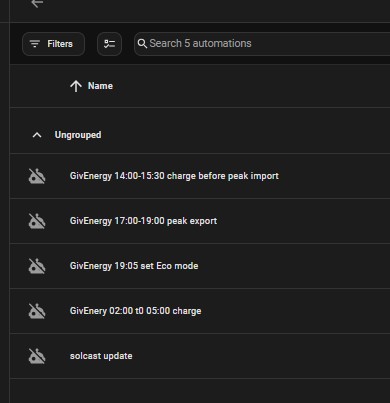
I do my control of the inverter by using Home Assistant scripts for each task, that way I can call the scripts as and when I want to either manually or from an automation.
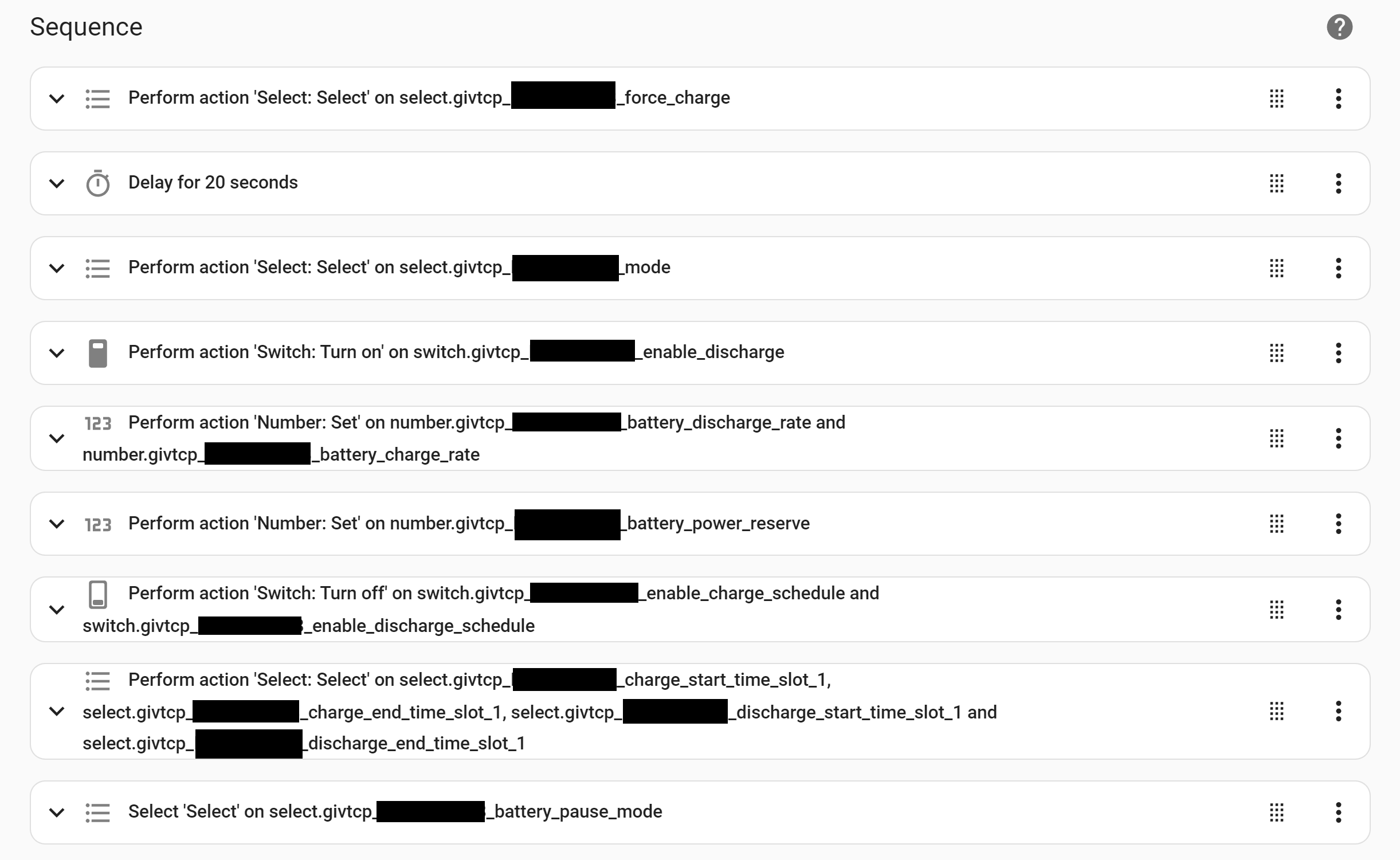
My scripts have evolved over time and they are now very 'belt and braces' in that they assume nothing about the current inverter state and will configure every aspect of the inverter to ensure that the action works as I want it to. Doubtless some of these control settings could be omitted, but they are what they are.
Also worth highlighting that there are "quick action" controls in GivTCP that can be used to do a force charge or a force discharge for a number of minutes. These do work as expected but I don't use them in my scripts, I do it the 'old fashioned' way of setting the low level controls I need. These controls are select.givtcp_SERIALNO_force_charge and select.givtcp_SERIALNO_force_export - simply choose the desired time duration, 2, 15, 30, 60 minutes, etc from the dropdown.
To create a script in Home Assistant it's Settings / Automations & Scenes / Scripts
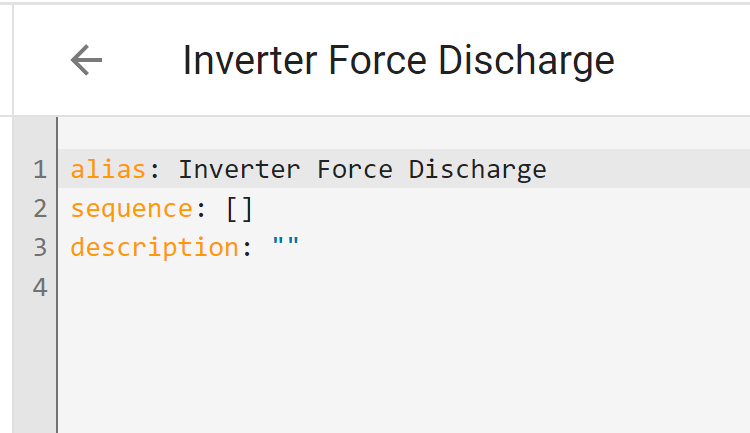
Add Script / Create new script / three dots top right / edit in YAML
Then paste my script in.
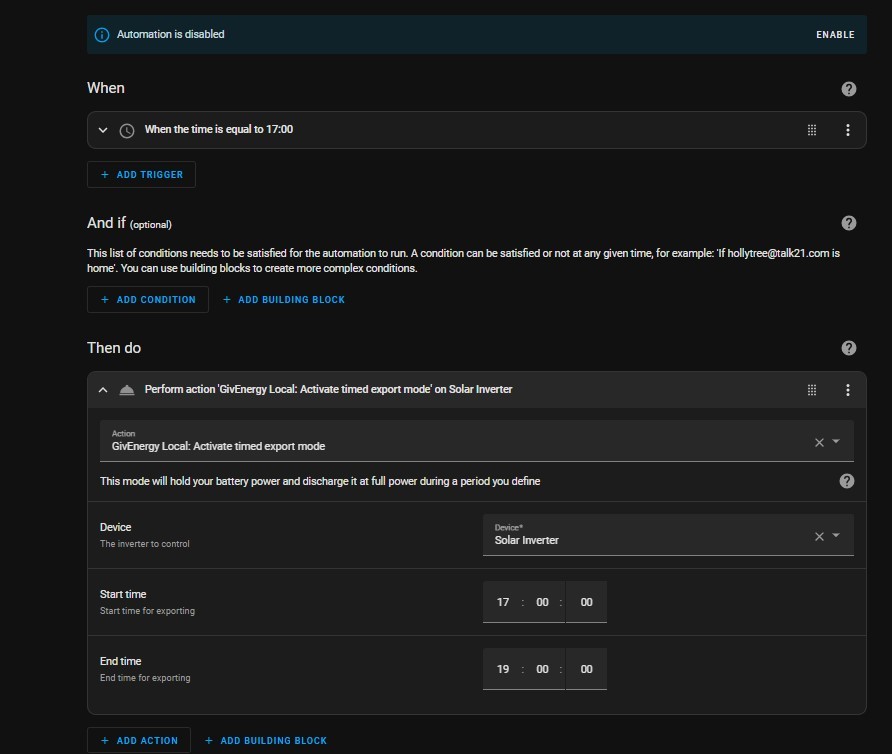
To run a script in an automation, Add action / type 'script' then choose your script name from the list presented
I'll add each script as a separate comment below.