AMCM I did exactly the same 2 weeks ago with success using a new Tp Link Deco XE75 to replace my old BT setup. I connected the Deco directly to my new fibre ONT connection so that I didn't have to still use the BT router as a DHCP server.
I set up the wifi using the SSID and password from my old BT router and this ensured that all my wifi connections would be picked up. All were connected except for the GE inverter.
So I went through the same process using the GE wifi guide:
https://kb.givenergy.cloud/article.php?id=1
When I got to the security page, I input WPA2-PSK and AES as in the guide.
In the Deco app, WPA2 was shown. I guessed that this was the same as the '-PSK' variety.
Do check that you don't have WPA3 set here or you won't be able to connect.
To find these on the Deco app you need to negotiate:
More/Wi-Fi Settings/2.4 GHz & 5 GHz Network/Advanced/Security.
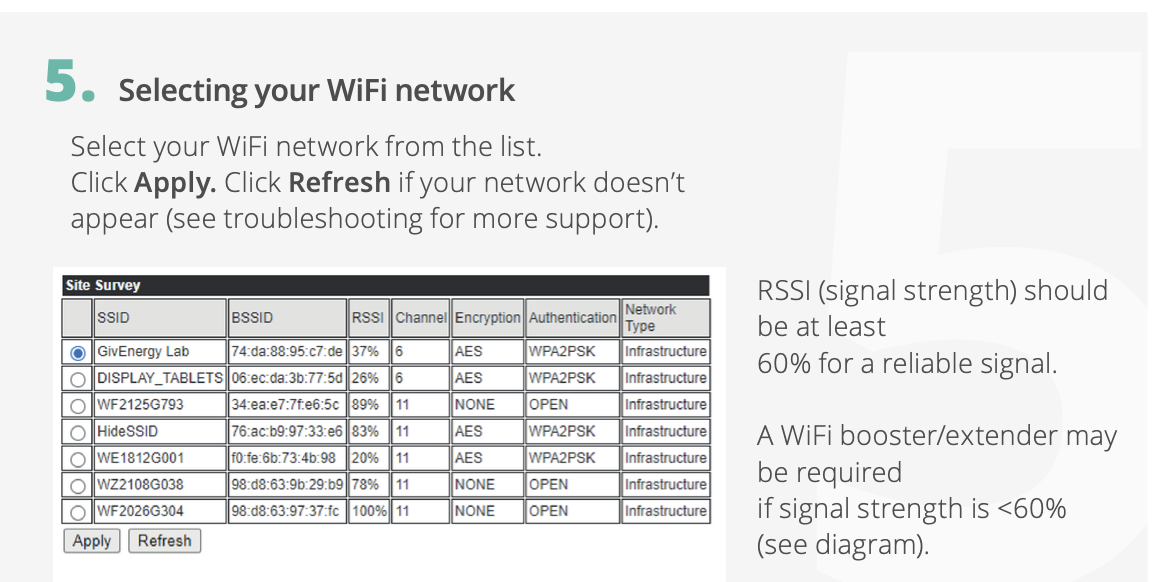
At stage 5 of the process, was your Wifi network picked up?
Finally, I did still have an issue and found that the GE inverter was still connected to its own local WO SSID.
This SSID was still showing up on my iPhone. I 'forgot' it and the GE inverter was connected to my wifi
I can't believe how much my wifi connectivity has improved throughout the house with the Deco.
Doesn't say much for my old BT Smart hub 2 and wifi disks!
As an aside, although not needed for the GE inverter,
- Did you also check the IP address that the Deco had set up for the GE inverter?
- Deco had set up IPs for me under 192.168.68.X
- My previous router had assigned IPs under 192.168.1.X
This looks a straightforward process but I found that I really had to concentrate at each step.