Hi, I successfully used the GivInstaller app 2 days ago. I was taken through the process over the phone by one of the support staff at GE. I am trying to remember the steps and I am going through the steps on my iPad (I used the iPad simply because the screen is so much bigger than on a phone.)
First, you do not need to log on so anyone can use GivInstaller.
- Select Update WiFi details.
- You get to a screen for 'Restart Dongle'
Swipe right (You will find that you can only swipe one way. You continue scrolling that way throughout)
- Now 'Scan barcode'. Doesn't make sense!
But scroll right again.
- Next screen has 'Wifi Name (SSID) and WiFi password.
Just swipe right.
- Update WiFi details
Just swipe right!
- Select Update Wifi details
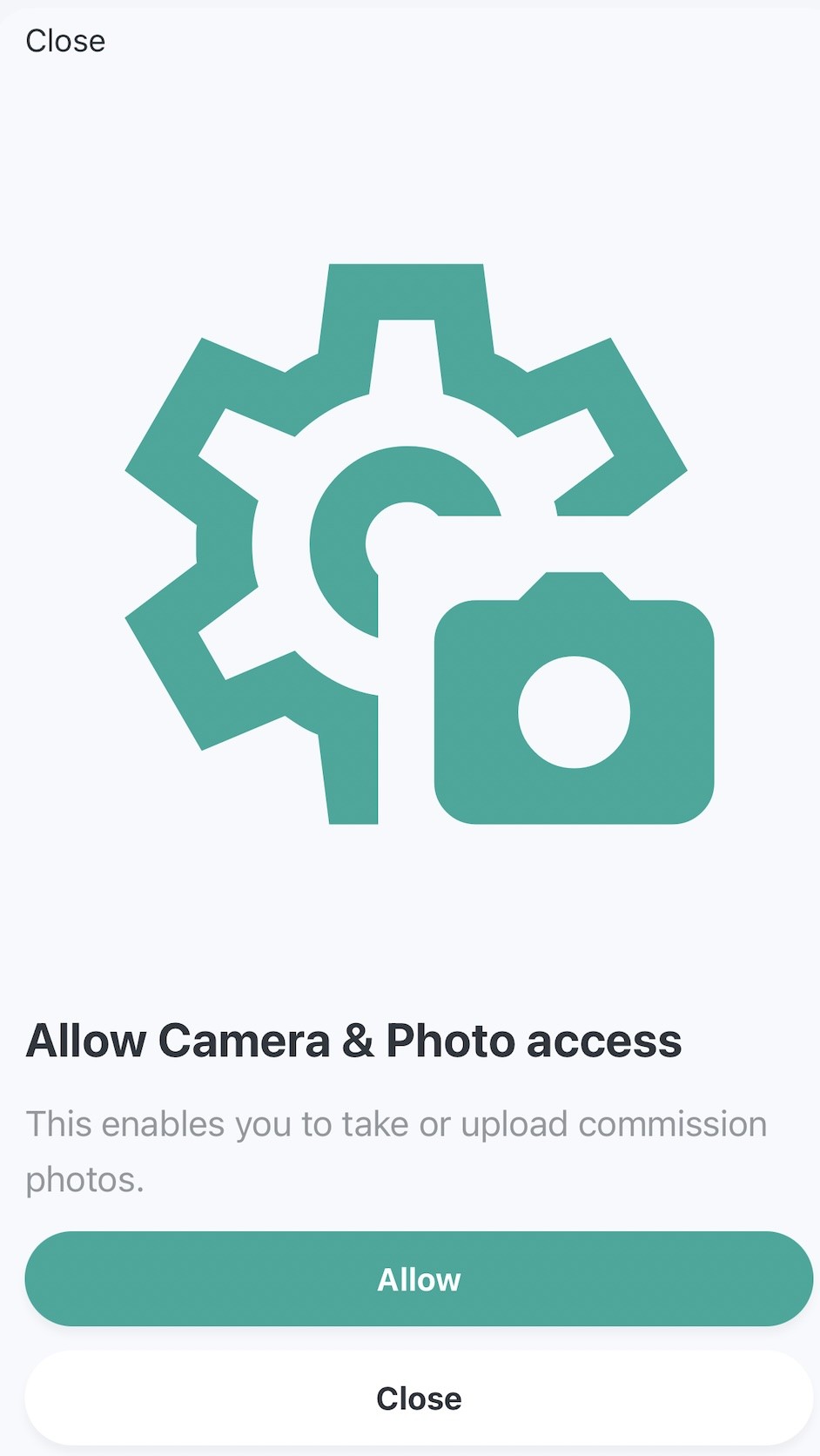
You may then see a screen for Allow camera & Photo Access.
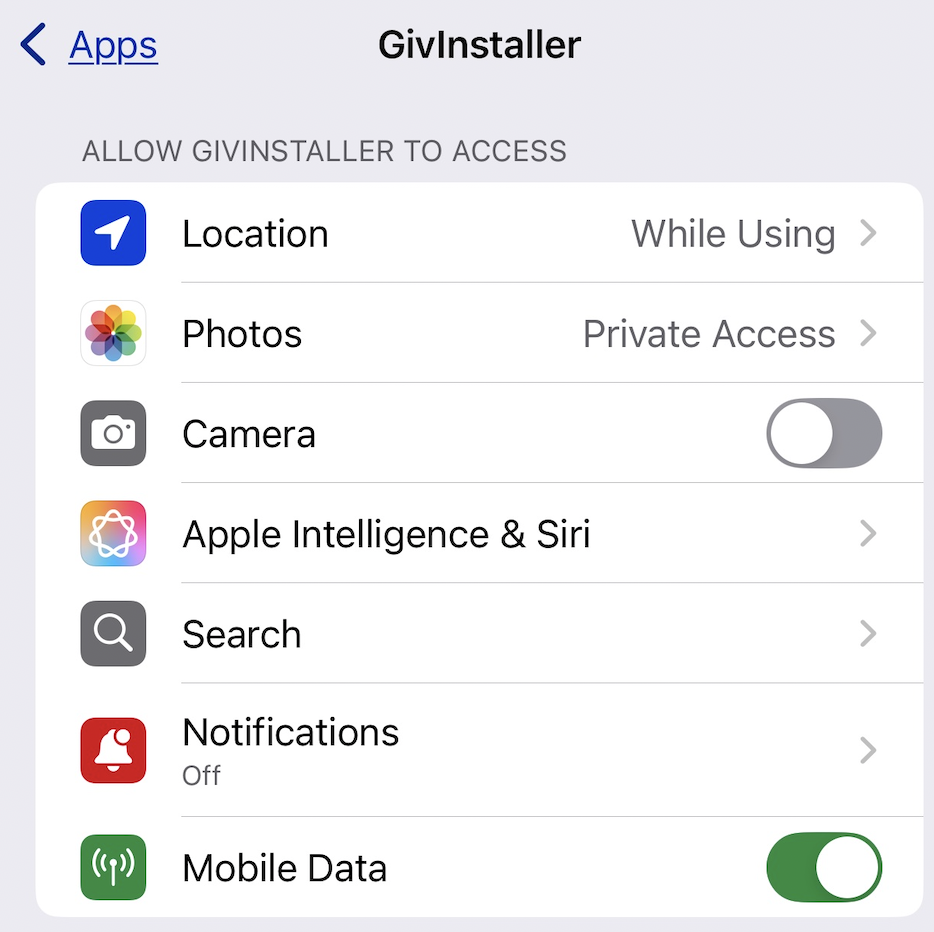
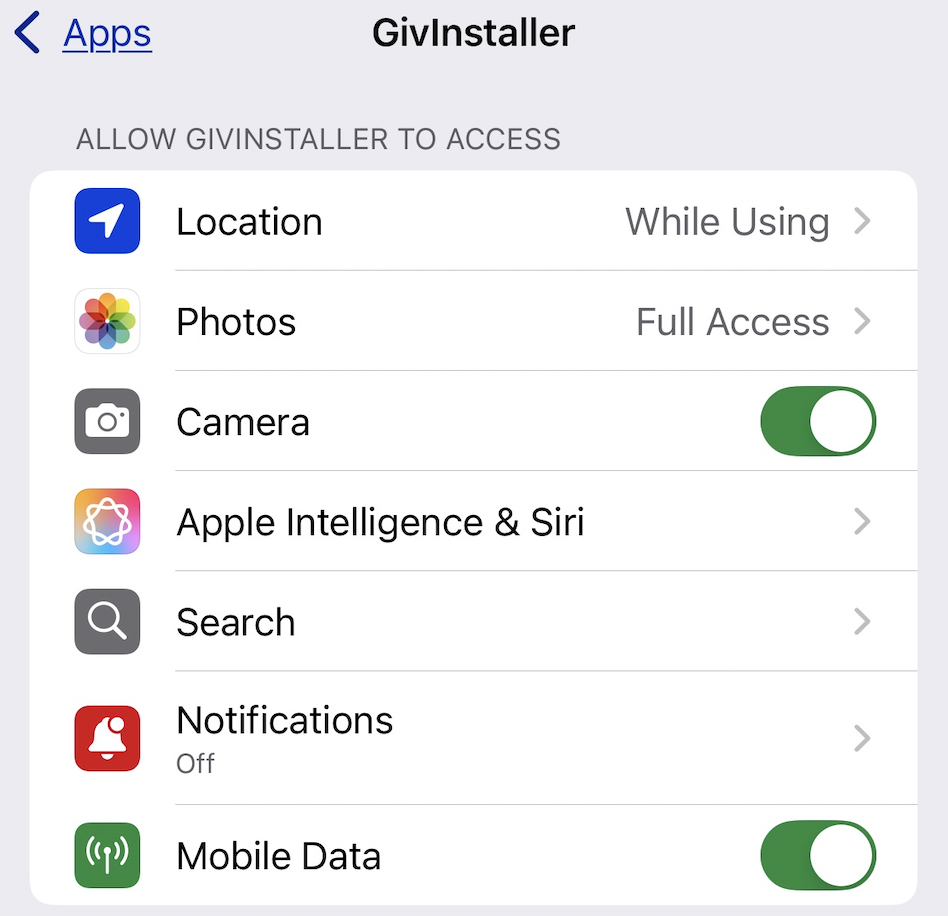
Select Allow. I use an iPhone and I was taken to a screen where I could give permission for GivInstaller to access photos and camera. I then go back through the screens and am eventually taken back to the start. I gave full permission for my photos. Once you have done this once, you shouldn't need to do it again.
- Select either internal or external dongle followed by Next. I have an AC3.0 with external dongle with an external dongle.
- Follow instructions on next screen, Instructions are different for internal and external dongles. External is easier as the dongle is in front of you. This step resets the dongle.
When complete, Select Next followed by Confirm
- Scan Barcode!!
On the external dongle, GE decided it was a good idea to place the barcode at the back!
Before I started, I removed the dongle and took a photo of the back of the dongle with the barcode which I could then scan. I did try scanning the barcode at the side of the inverter but this didn't work. I guess you would have to do this with an internal dongle.
BUT, you just need the Dongle Serial Number and this is the same as the Dongle's local SSID. This should be listed amongst the WiFi networks and mine starts with WO.
I didn't select the camera. You may need to give your GivInstallers permission to use the camera. I saw this when i first opened GivInstaller.
I scanned the photos but another tome, I just input the Network SSID for the Dongle serial Number.
Then select Next
- The next steps should be self explanatory.
If you get stuck, elect the back < bottom and you are taken back to the start.
I recommend that you go through the steps. I would ignore step 8 for now until you get used to the sequence.
This all sounds complicated but once you work out what to do it is straightforward.
You do need to ensure that you are using 2.4 Ghz and not 5 GHz. I have set up an IoT network for which is just 2.4 GHz.
So just try it out. You can't do any harm.
Best of luck
Rob