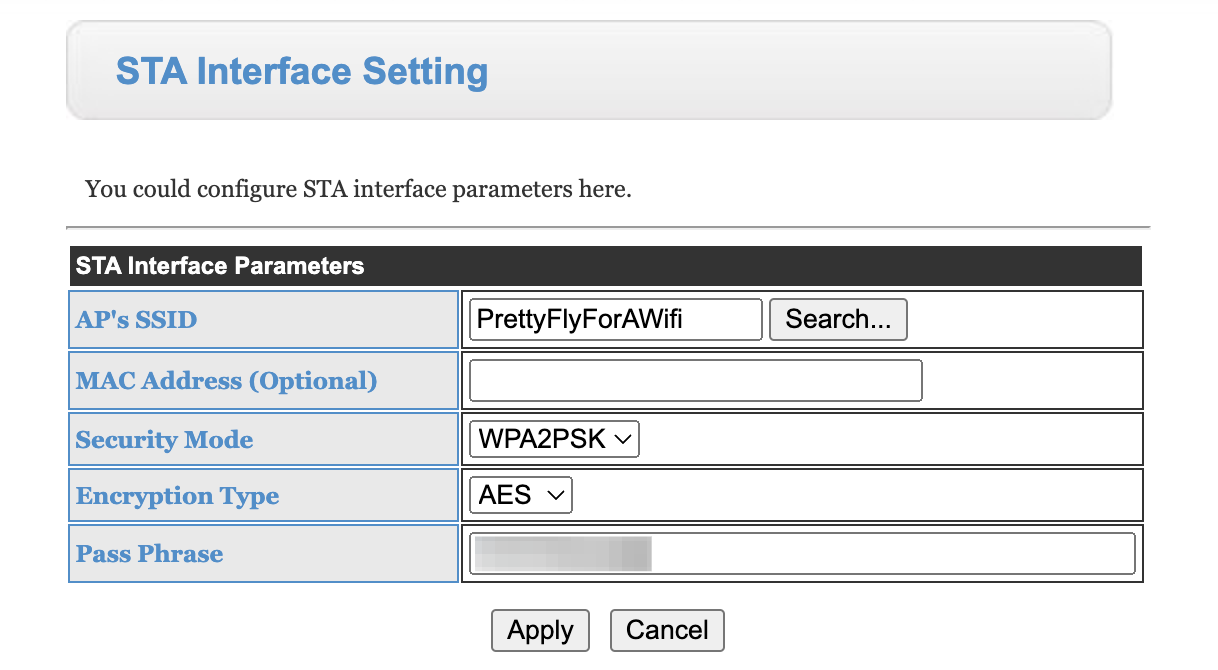
I installed a TP-Link mesh network, for some reason as soon as I installed the system would not connect to the wifi. Tried everything and ended up creating a separate network for the Solar which I also use for work. Anyone know why the wifi dongle might not work with the TP-link?
Mesh Wifi and Dongle

bignelly Ok couple of ideas. 1 the wifi network must be 2.4ghz not 5ghz. 2 the givenergy dongle does not yet support WPA3 wifi encryption. If you can check that is set to WPA2 as well.
THALL
Yeah its 2.4ghz because I have multiple smart plus etc that have to run on it....if I log into the dongle it find the wifi, I can set the password etc but it doesn't connect

bignelly Do you know what encryption your wifi is set to use? I had this issue when I upped to WPA3 which is not compatible.
THALL
Thanks, it is WPA2-PSK [AES]
I had the same problem with my dongle connecting to a TP-link Deco X20 mesh wifi. It only connects if the password security is disabled. But will not connect as soon as a password is set.
Have checked the security is on WWPA2-PSK [AES], but it did not help.
Had to connect to the Virgin Hub wifi network in the end.
I am using a NOVA mesh setup and I haven't had any issues that I am aware of.

I am not sure why a mesh system would make any difference. The encryption method would if not support by the givenergy dongle. Have you given the new password to GivEnergy support to set on the dongle for you?
On that note, I would like the option to set the wifi password myself GivEnergy!

we found a similar issue trying to 'discover' and inverter on the network is there is MESH. ARP commands dont find it, so something about the way some manufacturers have implmented stops some functions working. e.g. new subnets, firewalls etc etc
Worse than that it seems differnet manufacturers do things differnetly
JasonCartwright ditto Nova runs like a dream since i replaced my ageing apple airport network.

I will look into this. Falls into my realm of work. I am wondering if the wifi link for the haul back channel is using WPA3 encryption which would stop the givenergy dongle connecting. But I will take a look and let people know.

So it appears the tp-link deco system does use wpa3 for its backhaul connection, the wifi link between each router/ap etc. The givenergy dongle can not yet cope with WPA3 though apparently a firmware upgrade will happen in the future to allow it.
THALL interesting...
At the moment I set up a separate network running off a SIM which is used just for the Solar PV and also for a dedicated link for a media console. Would be easier not to have multiple networks and that is what the mesh was supposed to get rid of but it works so happy days
It is worth noting because the system was offline for nearly 6-8 months because I couldnt figure out the problem
My dongle connects fine to my Deco mesh - have you tried turning off fast roaming - I had to do that to get my two cars to connect. Just checked and its on my guest network with my smart plugs - only 2.4 Ghz enabled and security set to WPA2 - guest network is isoltaed from my main network

bignelly Not exactly, a mesh is designed to extend your wifi network by using 1 of the 3 wifi channels to create a link between the points, rather than sharing a single channel effectively halving the speed. But nearly all routers theses days with merge both 2.4ghz and 5ghz wifi into a single ID and allow the device to neotocite. However I find performance is better if I separate out high performance devices to the 5ghz and slower devices on the 2.4ghz. So the few smart home devices I have, alexa, washing machine, givenergy go on the 2.4. However things like sky multi room share the 5ghz channel which is a pain
To close this out, well kind of, I created a guest network on the mesh wifi. Set it up with no password etc but it is separate to my own so keeps everything safe. Connected the GIVenergy system up to it and working perfect now.
Not ideal as I don't like an unlocked network but we luve in countryside with only a few houses around us so the chance of the guest network been abused is minimal
When local monitoring eventually arrives, using a guest network will not work as other devices in your private network will not be able to see the inverter. Not a problem yet, but I believe it will be at some point so a heads up for the future
For anyone who's interested, I use a dedicated VLAN off the router, for all of my IoT devices, in a bid to provide some secure separation between all of this kit, and the rest of my home network.
The main reason was that I'd heard all sorts of ugly stories about various bits of kit from the Far East, containing hidden spyware etc, so I decided to at least try to separate these off.
Can't be sure it's 100% effective, because there are some very clever folk out there, but it's better than nothing (I hope!).

I came a cross this thread following some troubles my installer was having connecting to my WiFi. The install is almost done so he was just powering up the inverter to get the dongle on the WiFi. It just would not connect.
Long story short, I have the TP-Link Deco M9 Plus units which generally work great. Signal is strong to the dongle but it flat refuses to connect.
Tried again this morning after reading up last night, finding this thread and this one on the MSE Forum, powered up the 2.4 WiFi on my router, (it's normally off as the mesh handles the WiFi) and it connected first time and I see the inverter details in the cloud portal so I suspect all is connected as it should be. It's not ideal as I don't want the router WiFi live and the signal strength is not ideal so I hope GE can sort this. I've dropped a bug report to GE. Perhaps there's an update or a certain configuration that can be done but with the increase in use of mesh networks, it's something that needs to be addressed.
rwbarrett you mention that it connects fine to your Deco. Can I ask what model it is as this may be significant. Also do you have any specific settings like Fast Roaming disabled. I've only had issues before with the Sky Q box which when connecting to the mesh, the Sky box crashed. This was solved by turning off the mesh feature for this connection but I'm not able to do this for the GE dongle as it never connects.
Hopefully it can be resolved soon.
have not had a deco for a few years but a few thoughts
- check the deco log and look for any errors from the dongle - you can get the mac address of the dongle by connecting directly to it,
- the deco I had did not support the full range of encryption options which caused problems with some devices connecting. (this may show up in the log)
- if there is an option to support extended channels (12, 13..) try disabling it.

Thanks for the reply @locked I hadn't actually got around to fishing through the logs but that's something I will take a look at. However, I have had some progress and managed to get the dongle to connect to the mesh. As suggested by rwbarrett I focussed my investigation on the Fast Roaming setting. Disabling this seemed to fix the problem. I'd like to have the benefit of Fast Roaming so I managed to re-enable using the following steps.
- Disable Fast Roaming.
- Connect to dongle access page.
- Connect to mesh WiFi.
- Restart the dongle and confirm connection.
- When connected, find the dongle in the Deco app device list.
- Turn off the mesh function.
- Turn on Fast Roaming.
I've restarted the inverter a number of times now and it's reconnected each time so hopefully this was the issue.
To add, I have a DECO M9 mesh network and the only way I can get the GivEnergy unit connect to my network is by setting the Mesh setting to WPA and not WPA2... I'm not sure if the BackHaul on this device supports WPA3, but eitherway, with WPA2 turned on it doesn't connect.

I just noticed that the dongle has a choice of TKIP or AES for WPA2... Maybe make sure it's set to WPA2-AES and try that?
Yorkie71 Thanks, this worked for me - Deco M5
I was having most of the same issues connecting to my router, I fixed it by using a Wi-Fi extender. It only took 5 minutes to set up
This is the link to Amazon but you can buy the device from a number of places.
Are you saying the dongle can’t deal with the presence of a WPA3 network or being on it?
If it’s using a 5G WPA3 network as backhaul, but presenting a 2.4Ghz WPA2 network that should behave just fine.
We don’t use mesh, but do hire multiple wired AP.

kram No no not at all. Separate ssids will be fine.
This will be interesting as we have multiple AP, presenting a common SSID (well a few), albeit with different channels and roaming but no “mesh “.
I’ll keep an eye out and have a look at what is going on as I have some quite comprehensive diagnostic bits if needed.
To be fair, I’ll shortly be dropping 4 runs from a patch panel down to area near the equipment, so if there are no issues with that then the WiFi becomes a non issue assuming it can be disabled.

kram As long as one of the SSID's is WPA2 it should be fine. I am keen for GE to release an update to the dongle to allow WPA3. Frustratingly my wifi gear will only only a single 2.4ghz and single 5ghz network. I would love a separate 2.4ghz for older devices
kram I have two AP's in the house - with roaming, both transmitting on the same SSID and both 2.4Ghz and 5Ghz. No issues. Inverter WiFi can see both AP's and will switch if one goes off when I update the firmware (Or it updates automatically)
@THALL I can have multiple SSID's on mine - I should have put all my IOT stuff on a separate network when I first started - but didn't and it might be a right pain to swap over now (I have currently 25 connected WiFi devices!)


anglefire (I have currently 25 connected WiFi devices!)
That made me wonder if some peoples wifi problems are because they are using the isp's supplied router and it can only cope with a limited number of devices. I hit that problem myself and took a while to understand why. solved with an asus zen wifi mesh sytem.
positor1 That is a very good point - my ISP's router is actually pretty good - and I do use it's AP for my works laptop (And it covers the house pretty well) when I want to VPN to the office or some sites as being double natted I've yet to get the VPN to work - and as this works haven't investigated any further.
Adding my own experiences of Mesh wifi and the GivEnergy inverters to the mix.
I have 2x Gen1 5kW hybrid inverters. The inverters are in the garage and both had been connected OK to a TP-link powerline repeater in the living room. The powerline is reasonably reliable but I did on occasion find it lost connection to the central hub, requiring unplugging and replugging adapters until I got it rebooted OK. Powerline connection to my workshop was much more flakey and so I bought a Mercusys AX3000 (Halo H80X) 3-node mesh network and today I changed the inverters over to use it.
Mercusys is a sub-brand of TP-Link and apparently the control app is a rebrand of the TP-Link Deco app.
It took me quite a while to get the first inverter connected to the mesh network. Followng the instructions from Yorkie71, disabling fast roaming, I just couldn’t get the inverter to connect to the WiFi.
Long series of trying one thing then another I finally got connection when I turned off Fast Roaming, Beamforming and critically the 5GHz network. Until I turned off the 5GHz network the inverter just wouldn’t connect.
Security is set to WPA2-PSK [AES]. I tried other password security settings but none seemed to make a difference.
After having got the inverters connected I have tried working out what Mesh wifi settings I can turn back on and still keep the inverters connected. I disabled Mesh Technology for the two inverters but every time I turn Fast Roaming back on the inverters disconnect from the network. Disabling Fast Roaming and the inverters will reconnect.
At the moment I have the 5GHz wifi turned back on alongwith Beamforming and it seems to be quite stable.

geoffreycoan This is certainly an odd problem. My inverter has been in over a year now and the connection has been rock solid. There have been a couple of times where the Deco nodes have been powered off or there's been a connection drop for a know reasons but the inverter has always reconnected. I have the beam forming and fast roaming enabled but I disable the mesh settings on the inverter connection directly. The nodes run both 2.4GHz and 5GHz bands and the inverter connects to the 2.4GHz as you'd expect.
Incidentally, there was a Deco update the other day and I see that it's now possible to set each connection to a preferred node and band. I haven't done this with the inverter as it's connected quite happily but it's an option that might help with these temperamental devices.
Yorkie71 Yes it is strange. I followed your advice and disabled mesh technology in the mercusys app for the inverters once I had got them connected to the 2.4GHz network, but turning Fast Roaming on caused the inverters to drop out. I’ve just tried it again, turned Fast Roaming on and the inverters both disconnected within 30 seconds. Left Fast Roaming turned on for a while and they didn’t reconnect. Turned it off and they reconnected about 30 seconds later.
I have the latest Halo firmware installed 1.1.1 Build 20230525 Rel. 71264
There doesn’t seem to be an option to set the preferred band and node for each device, maybe that feature is exposed on the more premium Deco and not the Mercusys devices? I can see what network and node devices are set to, but not change it.
I’ve got Gen 1 hybrid inverters so maybe the wifi firmware is different to yours?

geoffreycoan Gen1 Hybrid 3.6 inverter here. Original firmware D0.450-A0.451 so that is a mystery.

geoffreycoan https://www.mercusys.com/uk/faq-761 would suggest that both devices need to support fast roaming, which I'm guessing the GE dongle doesn't.
Just leave it switched off, it's only an needed if you move around frequently into areas where signals overlap

The 5GHz problem is possibly "band steering" which is how a router/AP/Mesh tricks devices into using either 2.4GHz or 5GHz according to its own preference.
TL;DR the AP will initially "ignore" a 2.4GHz device when it connects, in the hope it will go away and connect on 5GHz instead. This is a passive solution that the client device doesn't know about.
The process is:
- When a WiFi client connects for the first time (or re-connects) on 2.4GHz, the AP ignores it.
- Clients that support dual-band will determine the 2.4GHz AP is non-responsive, and try on their 5GHz instead. The AP then lets them on and starts communicating.
- Clients that only support 2.4GHz will obviously not try on 5GHz. The AP realises that it's not heard from that new client on 5GHz, and stops ignoring the 2.4GHz so they can connect.
This process can cause a delay when a device initially connects/re-connects.
I'd imagine the AP can use the same trick for pushing clients around between congested networks - so if your own WLAN becomes congested on 2.4GHz, it might try pushing clients onto 5GHz accordingly. And vice versa. Certainly my Mesh/Router does this.
I think band steering is helped by clients implementing some of the newer WiFi part standards (802.11v) but this is not widely/consistently implemented. So even with clients not supporting 802.11v, many band-steering APs will still try the passive workaround as-above.

Riscy Which caused 2.4Ghz only devices to be kicked off
but if the 2.4Ghz SSID is a different name, the steering, cannot happen

But there's no inherent problem with band steering or having identically-named bands. Should be fine (as indeed it is in my setup).

After a couple of years of having no updates, my Deco units received a firmware update the other day. There were a couple of interesting new features which may help this situation.
Setting the band of a device to auto, 2.4Ghz or 5Ghz. Although I found that it connected, it did take a while sometimes. I have locked the inverter dongle to 2.4Ghz and it seems to connect faster when the node goes offline.
Setting the device so that it is locked to a node. I haven't used this as it generally locks to the closest one but a useful feature anyway.
The band lock is definitely a useful addition as there are a number of 2.4Ghz devices that have issues connecting to networks that have dual band; my Sky Q boxes are one of them.
The dongle tends to show an instance of your network for each mesh node that's in range.
You do have the option of locking in to a single mesh node by adding the MAC address of the node to the dongle config.
This was what GivEnergy support advised when I lost connectivity to my AIO
Worth noting it did not fix the issue, but a 'turn it off and on' did🤣
tomorrowman
This is interesting as this is the advice I have recently been given by GE technical support. I am getting constant inverter wifi disconnections and the advice provided to me is to add a MAC address of the closest mesh node in one with the dongle config. instructions. Unfortunately, I failed at the first stage as I couldn't connect to the inverter's wifi in the manner that is set out in the instructions as I don't know the dongle's wifi password. I tried "12345678" and the inverter's serial number as these seem to be a favourite by other users' posts, but no go. Perhaps I need to disable something else? I tried 'forgetting' my Orbi mesh wifi, but this didn't help. Also, the wifi portal address: 10.10.100.... that GE gave me, doesn't work. What baffles me is why this has started to happen as I have not had wifi connection issues in the 18 months of having the system. I haven't changed the home router nor the password, SSID etc. Odd.
chickenlegs Is it possible to reset the dongle and set it up from scratch?
Perhaps if it was a version of the inverter where the dongle was exposed but on the gen 3s, it’s internal to the cover.
Yorkie71
Wanting to enable fast roaming on my Deco mesh I followed the instructions here but it wouldn't connect.
Reading on I added the MAC address of the nearest Deco into the dongle configuration and even with Fast Roaming turned off and Mesh disabled for the dongle, it no longer connects at all.
So...how do I go about resetting it so that I can reconfigure it? The dongle in my inverter seems to be internal (GIV-HY3.6)
R0ss The dongle’s in all the givenergy inverters are quite old tech and don’t support fast roaming or 5GHz network connections, only 2.4GHz network.
I have a Mercusys mesh network which is the cheaper version of Deco but the software is the same. I have fast roaming disabled and beam forming enabled. When I first setup my inverters to connect to the mesh I had to turn the 5GHz network off, but once connected to the 2.4 I could turn the 5 back on again.
In practice I’ve not had any issues with wifi dropout when walking around the house with fast roaming off
R0ss On Tp-link Deco, there is an option under 'More' for IoT network. The SSID is appended with _IoT and this is 2.4 kWh only with security of WPA/WPA2 max.
I finished up using this. I did turn off roaming but I want to use it.
The GE dongle set up instructions recommends choosing the SSID with the strongest signal and that does include the Mac address. My Deco app states that the signal is 'Strong'.
I will see how things work and may be brave and turn roaming back on at some stage.
But it took me about 11 hours to get my inverter back up yesterday when it went down.
When I did get connectivity, I switched off the DC breaker between inverter and battery and the AC breaker to the my distribution box. I found if I didn't disconnect the battery, the battery seemed to be backfilling a current back to the inverter, keeping it 'alive'.
I did try resetting the external dongle on my AC3 inverter but I was never convinced that all the existing data was removed. I did use 12345678.
Rob
Rbor Thanks Rob, the problem I have right now is that it's completely dropped off the network and I'm not sure how to reset it so that I can reconnect it
R0ss I am thinking back to the circumstances that allowed me to finally connect to my GE dongle. I has the same issue as you: the inverter had dropped off the network.
Refer to the dongle instructions throughout: https://kb.givenergy.cloud/article.php?id=1
- Switch off DC switch from inverter to batteries.
If this switch is internal to the inverter, switch off batteries. - Turn off AC switch from inverter to distribution board.
There should now be no lights on inverter and leave for 15 minutes.
I don't know whether these 2 steps do anything! - Then switch the AC switch on only to the inverter. When I did this, I held down the reset button on my external dongle for 30 seconds but I think yours is internal to the inverter.
Lights should now reappear on the inverter. - Make sure that any contact devices (laptop, iPhone, iPad, desktop) are connected to your wifi router.
_During the day, I tried this from my iPhone (screen too small), iPad and laptop.
Even if I could connect to the inverter's local IP address, the connection often dropped before I could advance through each step.
After trying my iPhone and laptop repeatedly, I went back to my iPad and found that it was actually connected to the dongle!! I don't think the dongle likes having different devices connected to its local IP (WOXXXX). My iPad is just wifi. - Now use one device only to make contact with WOXXXXX. My iPad was already connected so I used that.
- Go through the dongle procedure:
If your router has an IoT network or 2.4 GHz only mode, allocate the strongest signal to WOXXXX on the STA page. There is an option to add the MAC address (same as BSSID when choosing the network.) I didn't do this but I would now! That should link your dongle to that mesh point (I hope) and I would also hope that fast roaming could then work for my main network SSID.
Also make sure that you select WPA2-PSK for security. My default password here was 12345678. GE recommend using the inverter's ID but I left 12345678 - I then went on to the reboot stage from the instructions and prayed to the dongle gods.
After a bit of blue flashing, I got a steady blue light and my inverter had finally connected. - I checked my router app (Tp-link deco) and found that the inverter was 'connected' and had an IP address. I set this address as an 'address reservation' on my router.
- My iPad had automatically rejoined my main wifi and WOXXXXX should now not be joined by anything. The router should be joined to the 2.4 GHz SSID you have set up.
I would check this now myself but I am scared to interfere with the inverter – it took me so long to get it back up and running. I was a nervous wreck at the end on the process that took up 10 hours of New Year's Eve, trying different variations of the process.
I don't know if this will work but anything is worth trying.
I wonder whether my problem was caused by two different devices trying to contact the dongle local network (WOXXXX) at the same time.
Rob
Rbor Brilliant, thank you. I'l try this shortly
R0ss Let us know how you get on.
I have read back through posts at the start of this thread and a common piece of advice is to switch off fast roaming but I think you have tried this already (or haven't been able to change the setting).
Have you tried rebooting your router?
There's another thread here: https://forums.moneysavingexpert.com/discussion/6364624/givenergy-app
Common theme is 'turn off fast roaming' but you have already tried that.
Rob
Rbor I actually didn't need to go through the whole set of instructions. I switched off everything, brought inverter back online. Connected to the Wifi dongle from my Mac. Navigated to 10.10.100.254 and removed the MAC address that broke things in the admin screen.
Then I rebooted the dongle and it connected to the Deco straightaway. Still haven't got Fast Roaming enabled but I'll live without that for now.
Thanks for the pointers 👍️
R0ss This is great news. Well done.
If it's any consolation, I know how you feel!
I wonder whether switching everything off clears the system of any corrupted stuff.
So where was the Mac address that you removed?
Rob
Rbor 
In STA Interface Settings. I double checked the value I'd entered before removing and it was correct so who knows what's going on!
R0ss good choice of SSID. 😁